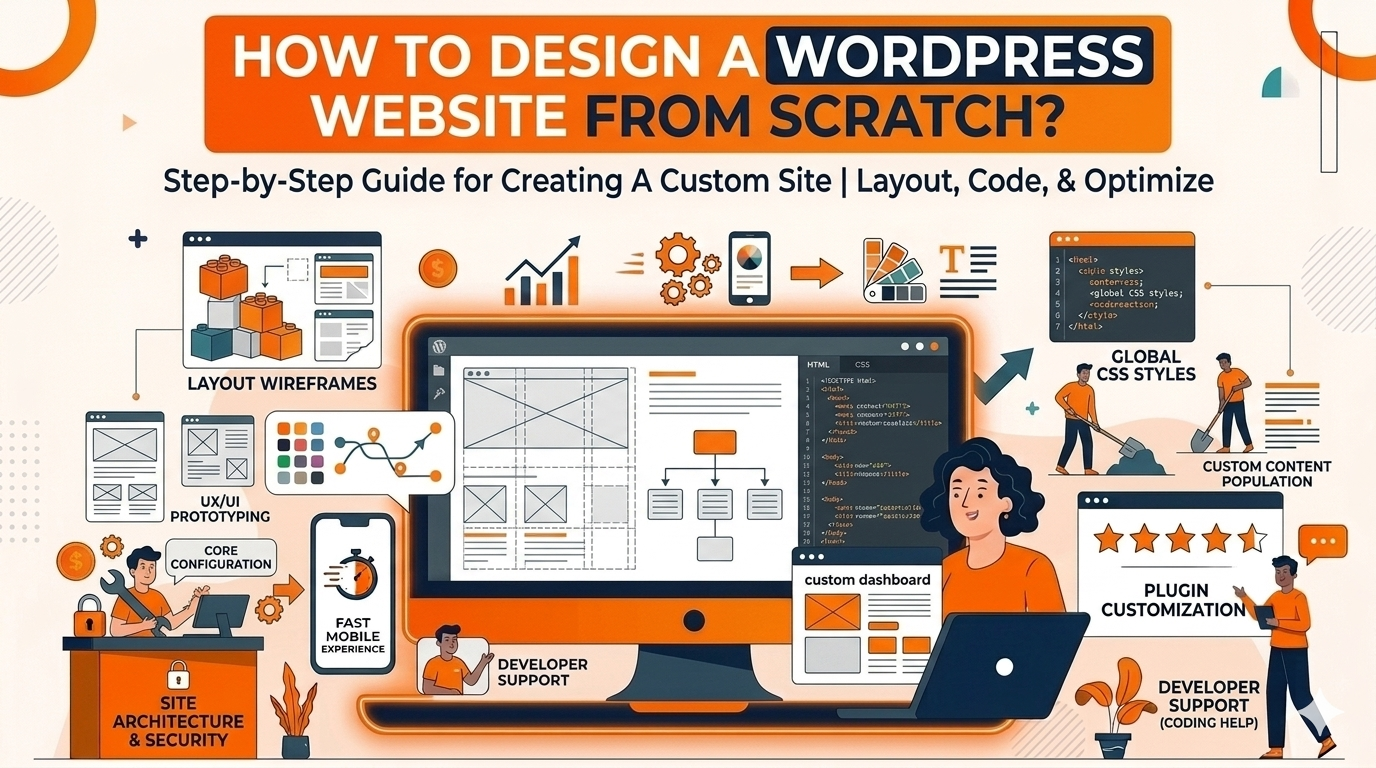
How to Design a WordPress Website from Scratch: A Complete Step-by-Step Guide
Learn how to design a WordPress website from scratch — from choosing a domain and hosting to installing a theme, customising your pages, and going live. A practical, beginner-friendly guide for South African business owners who want a professional website without hiring an agency.
Why Design Your Website with WordPress?
WordPress powers over 40% of all websites on the internet — and for good reason. It is free, flexible, beginner-friendly, and supported by thousands of themes and plugins that let you build almost any type of website without writing a single line of code. Whether you need a simple business website, a blog, or a full online store, knowing how to design a WordPress website from scratch is one of the most valuable skills a South African business owner can have.
This guide walks you through every step — from registering your domain to publishing your finished site — in plain, straightforward language. If you want to understand what a WordPress website actually is before diving in, read our guide on what WordPress website design is. If you would prefer to start with a theme, see our walkthrough on how to design a website using a WordPress theme.
At 99Webiz, we design and build professional WordPress websites for South African businesses — fully set up, mobile-optimised, and ready to grow. If you would rather have it done for you, visit our WordPress website design service.
Step 1 – Get a Domain Name and Hosting
Before you can design a WordPress website from scratch, you need two things: a domain name (your web address, for example yourbusiness.co.za) and web hosting (the server where your website files will live). These are the foundation of every website — without them, nothing else is possible.
Choosing a Domain Name for Your South African Website
- Keep it short, memorable, and easy to spell
- Use your business name or a clear description of what you do
- Choose a .co.za extension if you are targeting South African customers — it builds local trust and helps with local SEO
- Avoid hyphens and numbers — they make your domain harder to remember and share verbally
- Register your domain through a South African registrar like Afrihost, xneelo, or Domains.co.za
Choosing WordPress Hosting in South Africa
- Host your website on servers based in South Africa for the fastest load times for local visitors
- Look for hosting that includes a free SSL certificate — this is essential for security and Google rankings
- Shared hosting from providers like xneelo or Afrihost is affordable and suitable for most new WordPress websites
- Ensure your hosting plan supports WordPress with one-click installation
- Check that daily backups are included so your site is protected
Step 2 – Install WordPress
Once your domain and hosting are set up, installing WordPress is quick and straightforward. Most South African hosting providers offer a one-click WordPress installer through their control panel — no technical knowledge required.
Log Into Your Hosting Control Panel
Access the control panel (usually cPanel) provided by your hosting company. Look for a section called WordPress Installer, Softaculous, or Website Builder.
Run the One-Click WordPress Installer
Click the WordPress installer, enter your website name, admin username, and a strong password. Select your domain name and click install. WordPress will be set up in under two minutes.
Log Into Your WordPress Dashboard
Once installation is complete, go to yourdomain.co.za/wp-admin and log in with the username and password you created. This is where you will design and manage your entire website.
Step 3 – Choose and Install a WordPress Theme
A WordPress theme controls the visual design of your website — the layout, colours, fonts, and overall style. Choosing the right theme is one of the most important decisions you will make when designing a WordPress website from scratch. For a deeper look at this step, read our full guide on how to design a website using a WordPress theme.
What to Look for in a WordPress Theme
- Choose a lightweight, fast-loading theme — Astra, Kadence, or GeneratePress are excellent free options
- Make sure the theme is mobile-responsive — it must look great on phones, tablets, and desktops
- Check that the theme is compatible with the page builder you plan to use (Elementor or the WordPress block editor)
- Look for themes with good reviews, regular updates, and active support
- Avoid themes bloated with unnecessary features — simpler themes load faster and are easier to customise
How to Install a WordPress Theme
- In your WordPress dashboard, go to Appearance then Themes
- Click Add New and search for your chosen theme by name
- Click Install and then Activate
- Your theme is now live — you can begin customising it to match your brand
Free themes from the WordPress directory are a great starting point for most small business websites. Premium themes offer more pre-built templates and styling options, but a well-configured free theme can look just as professional with the right customisation.
Step 4 – Customise Your Theme and Design Your Pages
With your theme installed, it is time to design your WordPress website. This is where your site starts to look like a real business — with your branding, colours, layout, and content taking shape. Most modern WordPress themes work with a drag-and-drop page builder, making this process accessible even for complete beginners.
Key Things to Customise When Designing Your WordPress Website
- Upload your logo and set your brand colours under Appearance then Customise
- Set up your header — include your logo, navigation menu, and a phone number or WhatsApp link
- Design your homepage with a clear headline, a strong call to action, and a summary of your services
- Create an About page that tells your story and builds trust with potential customers
- Build a Services or Products page that clearly explains what you offer and how to get started
- Add a Contact page with a form, your phone number, email address, and your location or service area
- Set up a consistent footer with your contact details, navigation links, and social media icons
Elementor (free version) is the most popular drag-and-drop page builder for WordPress. It lets you design professional-looking pages visually — no coding required. Simply drag elements like text blocks, images, buttons, and columns onto your page and arrange them as you like.
Step 5 – Install the Essential WordPress Plugins
Plugins extend the functionality of your WordPress website. They add features like contact forms, SEO tools, security, caching, and backups — without requiring any coding. When you design a WordPress website from scratch, installing the right plugins from the start saves you time and makes your site more powerful. For a beginner-focused walkthrough, see our guide on how to design a WordPress website for beginners.
Essential WordPress Plugins for a South African Business Website
- Rank Math or Yoast SEO – optimise your pages and posts for Google search rankings
- WP Rocket or LiteSpeed Cache – speed up your website with caching and performance optimisation
- Wordfence Security – protect your WordPress site from hackers, malware, and brute force attacks
- WPForms or Contact Form 7 – add professional contact forms to your website
- UpdraftPlus – schedule automatic backups of your website to Google Drive or Dropbox
- Smush or ShortPixel – compress and optimise your images automatically for faster load times
- WooCommerce – if you plan to sell products or services online, add this plugin to turn your WordPress site into a full online store
Every plugin you add to your WordPress website can slow it down and increase security risk. Only install plugins that serve a clear purpose. Delete any plugins you are not using — deactivating them is not enough.
Step 6 – Create Your Website Content and Pages
A well-designed WordPress website with weak content will not generate enquiries or sales. Your content — the words, images, and structure of your pages — is what convinces visitors to trust you and take action. When designing your WordPress website from scratch, invest time in writing clear, helpful, and honest content that speaks directly to your target customer.
Write a Clear Homepage Headline
Your homepage headline should immediately tell visitors who you are, what you do, and who you serve. For example: “Professional WordPress Website Design for Small Businesses in South Africa.” Do not make visitors guess what your business does.
Describe Your Services Clearly
Each service you offer should have its own dedicated page or clearly defined section. Explain what is included, who it is for, and what the outcome or benefit is for the customer. Avoid vague, generic descriptions.
Include Strong Calls to Action
Every page should tell visitors what to do next — whether that is calling you, sending a WhatsApp message, requesting a quote, or completing a contact form. A website without clear calls to action loses potential customers who are ready to enquire.
Want a WordPress Website Designed for You?
Our WordPress website design service includes a fully custom-designed website, mobile optimisation, SEO setup, and all the essential plugins — professionally configured and ready to launch.
Step 7 – Set Up SEO on Your WordPress Website
SEO — search engine optimisation — is what helps your WordPress website appear on Google when potential customers search for your services. Building SEO into your WordPress website from scratch means you start generating free, organic traffic from day one rather than having to retrofit it later. For a full overview of WordPress website design and SEO, visit our guide on how to design a WordPress website.
WordPress SEO Setup Checklist
- Install Rank Math or Yoast SEO and follow the setup wizard to configure your site correctly
- Write a unique SEO title and meta description for every page on your website
- Include your target keywords naturally in your page headings, body content, and image alt text
- Set your permalink structure to Post Name under Settings then Permalinks — this makes your URLs clean and readable
- Submit your XML sitemap to Google Search Console so Google can crawl and index your pages
- Connect your website to Google Analytics to track how many visitors you receive and where they come from
- Add your location to key pages — for example, “WordPress website designer in Durban” or “web design services in South Africa” — to attract local customers searching on Google
Step 8 – Test and Go Live
Before you share your new WordPress website with the world, spend time testing it thoroughly. Small errors — a broken link, a form that does not send, a page that looks wrong on mobile — can damage the impression you make on potential customers. A few minutes of checking saves you from embarrassment and lost business after launch.
Pre-Launch Checklist for Your WordPress Website
- Test every page on a mobile phone — check layout, text size, button spacing, and load speed
- Submit your contact form and confirm that enquiries land in your email inbox
- Click every navigation link and button to ensure there are no broken links
- Check that your SSL certificate is active — your domain should show https and a padlock in the browser
- Run your website through Google PageSpeed Insights and fix any critical issues flagged
- Check that your site is not set to discourage search engines under Settings then Reading — this is a common mistake that prevents Google from indexing your site
- Preview your site on multiple browsers — Chrome, Safari, Firefox, and Edge
- Set up your first automated backup using UpdraftPlus before going live
WordPress, your theme, and your plugins release regular updates that fix security vulnerabilities and improve performance. Log into your WordPress dashboard at least once a month to run these updates and keep your website safe and fast.
- Register a .co.za domain and choose South African hosting for the best local performance
- Install WordPress using your hosting provider’s one-click installer — it takes under two minutes
- Choose a lightweight, mobile-responsive theme like Astra or Kadence for speed and flexibility
- Use Elementor or the WordPress block editor to design your pages without writing code
- Install only the essential plugins — SEO, caching, security, backups, and forms
- Write clear, benefit-focused content with strong calls to action on every page
- Set up Rank Math or Yoast SEO and submit your sitemap to Google Search Console from day one
- Test thoroughly on mobile and desktop before going live