How to Design a Website Using a WordPress Theme: A Step-by-Step Guide for South African Businesses
Learn exactly how to design a website using a WordPress theme — from choosing the right theme for your business to customising colours, fonts, layouts, and pages. A practical, beginner-friendly guide for South African business owners who want a professional website without hiring a developer.
What Is a WordPress Theme and Why Does It Matter?
A WordPress theme is a collection of files that controls the visual design and layout of your website. It determines how your pages look — the typography, colours, header and footer style, spacing, and the overall structure of every page your visitors see. When you learn how to design a website using a WordPress theme, you are learning how to take that foundation and shape it into a website that represents your brand professionally.
The theme you choose matters enormously. A bloated, poorly coded theme will make your website slow and frustrating to customise. A lightweight, well-built theme gives you a fast, flexible starting point that you can shape into exactly the website your business needs — without writing a single line of code.
Before diving into this guide, make sure you understand the basics by reading our introduction to what WordPress website design is and our complete overview of how to design a WordPress website from start to finish.
At 99Webiz, we design WordPress websites for South African businesses using lightweight themes like Astra and Kadence combined with Elementor — giving our clients fast, beautiful, fully custom websites they can manage themselves after handover.
Step 1 – Choose the Right WordPress Theme for Your Business
The first step in designing a website using a WordPress theme is choosing the right one. With thousands of themes available — free and premium — the options can feel overwhelming. The key is to focus not on how a demo looks, but on how fast, flexible, and well-coded the theme is. A theme that looks beautiful in a demo but is slow and difficult to customise will cost you time and customers.
Best WordPress Themes for South African Business Websites
- Astra – the most popular lightweight WordPress theme in the world; fast, flexible, and works perfectly with Elementor and page builders
- Kadence – an excellent alternative to Astra with powerful built-in design controls and a generous free version
- GeneratePress – ultra-lightweight and performance-focused; ideal for businesses that prioritise Google speed scores
- Hello Elementor – a completely blank, minimal theme designed to be used entirely with the Elementor page builder
- OceanWP – popular for small business websites and ecommerce, with many free demo templates available
What to Look for When Choosing a WordPress Theme
- Fast loading speed — check independent speed tests, not just the demo
- Regular updates and active developer support
- Compatibility with the page builder you plan to use
- Positive reviews from real users on WordPress.org or Trustpilot
- A clean, minimal design — it is easier to add visual complexity than to remove it
Step 2 – Install Your WordPress Theme
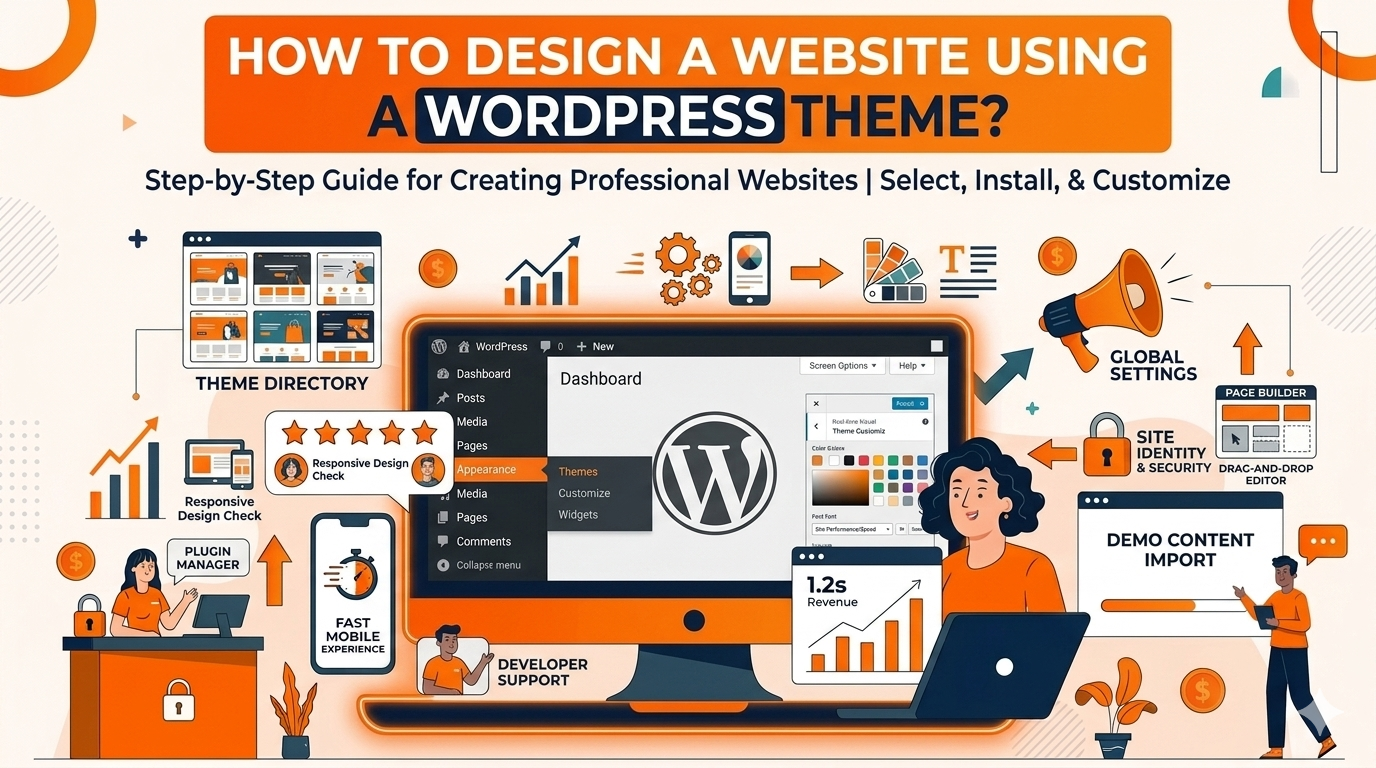
Once you have chosen your theme, installing it on your WordPress website takes less than two minutes. There are two ways to do it — installing directly from the WordPress theme library or uploading a premium theme file you have purchased.
Install a Free Theme from the WordPress Library
Log in to your WordPress dashboard and go to Appearance → Themes → Add New. Search for your chosen theme by name — for example, type “Astra” or “Kadence” — then click Install and Activate. Your theme is now live on your website.
Upload and Install a Premium Theme
If you have purchased a premium theme, you will receive a ZIP file. Go to Appearance → Themes → Add New → Upload Theme, choose your ZIP file, click Install Now, and then Activate. Your premium theme is now active and ready to customise.
Import a Starter Template (Optional but Recommended)
Most modern themes like Astra and Kadence include a library of free starter templates — pre-built page designs you can import in one click and then replace with your own content. This gives you a professional-looking foundation to work from immediately and dramatically reduces the time needed to design your website.
Importing a starter template does not mean your website will look generic. Think of it as a skeleton — you will replace every piece of text, every image, and every colour with your own brand. The structure is just there to save you time building from a blank page.
Step 3 – Customise Your Global Design Settings
Before you start building individual pages, set your global design settings — the brand colours, fonts, and base layout that will apply consistently across every page of your website. Getting these right at the start means every page you design will automatically match your brand without extra effort.
Global Settings to Configure in Your WordPress Theme
- Brand colours – set your primary, secondary, and accent colours using your brand’s exact hex codes; most themes let you do this under Appearance → Customise → Colours
- Typography – choose your heading font and body text font; use Google Fonts for free, professional typefaces that load quickly; keep it to two fonts maximum
- Button styles – set the default button colour, hover colour, border radius, and font weight so all your call-to-action buttons look consistent
- Container width – set the maximum content width so your pages do not stretch uncomfortably wide on large screens; 1200px to 1400px is standard for most business sites
- Base font size – set your default body text size for readability; 16px to 18px is recommended for South African audiences reading on a range of devices
Many beginners make the mistake of customising page by page, then realising every page looks different. Set your global colours, fonts, and spacing in your theme settings first. Everything you build after that will be consistent automatically.
Step 4 – Build Your Core Pages Using the Theme
With your global settings configured, you are ready to design your core pages. Every business website needs a minimum set of pages — and each one has a specific job to do. Using your WordPress theme and page builder, you will design each page to guide your visitors toward contacting you, making an enquiry, or completing a purchase.
Home Page
Your home page is the first impression. It should clearly communicate what your business does, who it serves, and what action the visitor should take next — all within the first few seconds of landing on your site. Include a strong headline, a clear call-to-action button, and social proof like reviews or client logos above the fold.
About Page
South African customers want to know who they are dealing with. Your About page should tell your story, introduce the people behind your business, and build the trust that converts a curious visitor into a paying customer. Include a photo of yourself or your team — it makes a significant difference to how credible and approachable your brand feels.
Services or Products Page
Clearly list what you offer, who it is for, and what it costs or how to get a quote. Use headings, icons, and short descriptions to make it easy to scan. This page is where visitors make the decision to contact you — make it as clear and compelling as possible.
Contact Page
Make it as easy as possible for potential customers to reach you. Include a contact form, your WhatsApp number, email address, physical address or service area, and a Google Maps embed if you have a physical location. Every barrier you remove from the contact process increases the number of enquiries you receive.
Want a Professional to Design It for You?
Our WordPress website design service builds all your core pages professionally — designed to convert visitors into customers, optimised for speed, and handed over ready to manage yourself.
Step 5 – Design Your Header and Footer
Your header and footer appear on every page of your website — they are the consistent frame that holds your design together and guides visitors to the most important parts of your site. Getting these right is a crucial part of learning how to design a website using a WordPress theme.
What to Include in Your WordPress Website Header
- Your logo — sized correctly so it is clear on both desktop and mobile without pushing the header too tall
- Your main navigation menu — keep it to five to seven items maximum; use a dropdown for sub-pages
- A clear call-to-action button — “Get a Quote”, “Contact Us”, or “WhatsApp Us” in your primary brand colour
- A sticky header — set your header to stay fixed at the top of the screen as visitors scroll so the menu is always accessible
What to Include in Your WordPress Website Footer
- Your business name, tagline, and a brief one-line description of what you do
- Quick links to your most important pages — Services, About, Contact, Blog
- Your contact details — phone number, WhatsApp, and email address
- Links to your social media profiles
- A copyright notice and links to your Privacy Policy and Terms of Service
Step 6 – Check and Optimise for Mobile
The majority of South African internet users browse on their phones. Once you have designed your pages on desktop, you must check every page carefully on mobile and fix anything that does not look or work correctly on a small screen. Most WordPress themes and page builders include a mobile preview mode — use it on every page before going live.
Common Mobile Issues to Fix on WordPress Theme Websites
- Text that is too small to read on mobile — increase your base font size or line height for small screens
- Images that overflow their containers or appear stretched — check every image at mobile width
- Buttons that are too small to tap easily — ensure all clickable elements are at least 44px tall
- Navigation menus that do not collapse into a hamburger menu on mobile — check your theme’s mobile menu settings
- Sections with too much horizontal padding — reduce spacing on mobile so content is not cramped
- Contact forms that are difficult to fill in on a phone keyboard — test the entire form on a real mobile device
The mobile preview in your WordPress dashboard is helpful but not perfect. Always test your finished website on a real smartphone before going live — what looks fine in preview can look broken on an actual screen.
Step 7 – Optimise Your Theme for Speed and SEO
A beautifully designed WordPress website that loads slowly or cannot be found on Google will not grow your business. Speed and SEO are not optional extras — they are essential parts of designing a website using a WordPress theme correctly. For a full beginner walkthrough, read our guide on how to design a WordPress website for beginners.
Speed Optimisation for Your WordPress Theme
- Use a lightweight theme — Astra, Kadence, and GeneratePress are all built for speed from the ground up
- Compress all images before uploading using a tool like TinyPNG or the ShortPixel plugin
- Install a caching plugin like WP Rocket or LiteSpeed Cache to dramatically improve load times
- Disable any theme features or modules you are not using — many themes load CSS and scripts for features you never activated
- Choose a fast South African hosting provider — local servers mean faster load times for your local visitors
SEO Settings to Configure in Your WordPress Theme
- Install Rank Math or Yoast SEO and fill in the title tag and meta description for every page
- Make sure your theme outputs clean, semantic HTML — proper H1, H2, and H3 heading structure matters for Google
- Add descriptive ALT text to every image on your website
- Set up your XML sitemap and submit it to Google Search Console
- Include your target keywords naturally in your page headings and body content — especially your location for local South African searches
Need Help Getting Your WordPress Site Found on Google?
We offer affordable local SEO services for South African businesses — helping your WordPress website rank higher for the searches your customers are making right now.
Step 8 – Final Checks Before Going Live
Before you publish your WordPress website, run through a final checklist to make sure everything is working correctly. Launching a website with broken links, missing images, or a broken contact form creates a poor first impression and can cost you potential customers from day one. For a deeper walkthrough of the full build process, read our guide on how to design a WordPress website from scratch.
Test Every Link and Button
Click every link on every page — navigation links, call-to-action buttons, footer links, and any links within your page content. Fix every broken link before going live. A broken link tells Google and your visitors that your website is not properly maintained.
Test Your Contact Form and Submit a Test Enquiry
Fill in and submit your contact form yourself to confirm the submission reaches your email inbox. Many business owners launch their websites without realising their contact form is broken — and then wonder why they are not receiving any enquiries.
Check Your SSL Certificate Is Active
Make sure your website loads with https — not http — and that there is a padlock icon in the browser address bar. An SSL certificate is free with most South African hosting providers and is essential for visitor trust and Google rankings. Never go live without it.
Remove “Search Engine Discourage” Setting
During development, WordPress has a setting under Settings → Reading called “Discourage search engines from indexing this site.” Make absolutely sure this checkbox is unticked before you go live — if it is left on, Google will not index your website and you will receive no organic traffic.
- Choose a lightweight, well-coded theme like Astra or Kadence — beauty in a demo means nothing if the theme is slow
- Install your theme and import a starter template to save hours of design time
- Set your global brand colours and fonts before building a single page — consistency is everything
- Build your core pages — Home, About, Services, and Contact — with a clear purpose for each
- Design a sticky header with your logo, navigation, and a call-to-action button
- Test every page on a real mobile device — not just in a preview window
- Optimise your theme for speed and SEO before going live
- Run a full pre-launch checklist — test every link, every form, and your SSL certificate